
Schedule supplier feed updates
A schedule runs a profile automatically from its saved source. Every scheduled run is a live run: it writes through the same guards as Run live…, and keeps every value it replaces, so it can be undone.
Before you start
Section titled “Before you start”- The profile has completed a dry run.
- Its source is a URL, FTP or SFTP. An uploaded file can’t be fetched again, so uploads are for manual runs.
- Your plan allows schedules. The Free plan runs manually only; see Plans.
Set the schedule
Section titled “Set the schedule”- Open the profile and its Settings tab.
- Under Run this feed, choose:
- Every hour,
- Every 6 hours,
- Every day at… and a time, or
- Custom (cron expression): five fields,
minute hour day-of-month month day-of-week. For example,30 6 * * 1-5runs at 06:30 on weekdays.
- Save. The card shows the Next run.
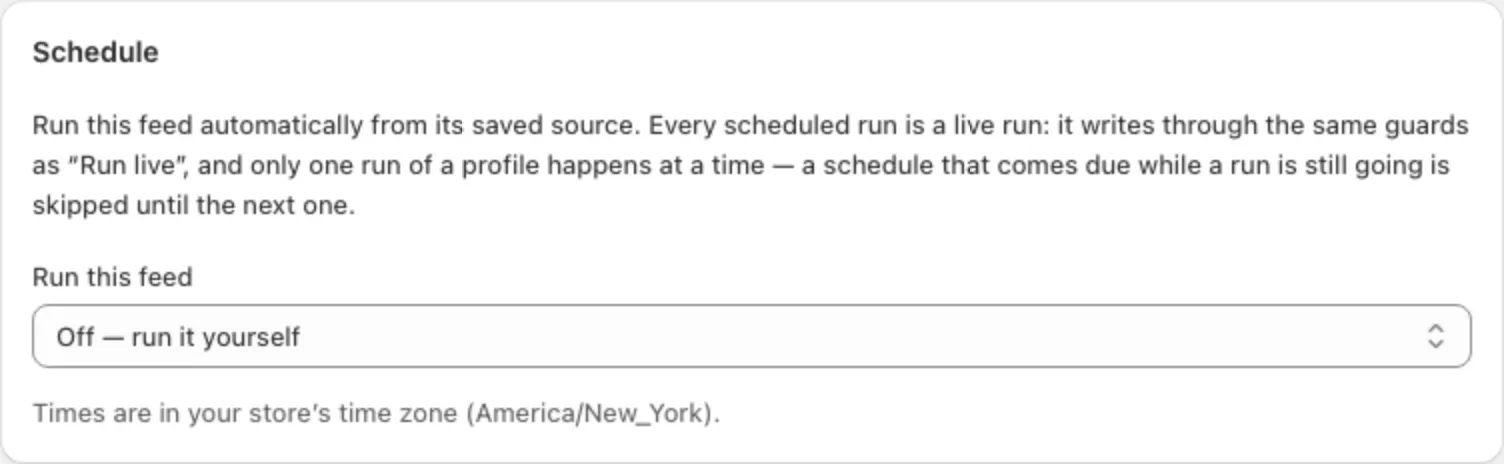
Times are in your store’s time zone (Shopify admin → Settings → General). The zone is fixed when you save the schedule, so if you change your store’s time zone, save the schedule again.
How often a schedule may run depends on your plan: daily on Starter, hourly on Growth, every 15 minutes on Scale.
While it runs
Section titled “While it runs”- Only one run of a profile happens at a time. A schedule that comes due while a run of the profile is still going is skipped until its next time.
- If the app couldn’t run a schedule on time, it runs it once when it can, not once for every missed time.
- Each scheduled run appears in the profile’s Runs tab and on the Runs page, marked Scheduled.
Hear about problems
Section titled “Hear about problems”In the Settings tab, turn on Run emails to email your store’s contact address when a run fails, enters a recovery hold, or its match rate drops.
Stop the schedule
Section titled “Stop the schedule”Choose Off — run it yourself under Run this feed and save.