
Your first dry run
The next three setup steps decide what the feed may change, then show you every change it would make.
Map fields
Section titled “Map fields”- Identity tells FeedForge how a feed row finds its variant in your store, usually by SKU or barcode. Choose the Identity field and the feed column that carries it (Identity source column). The preview marks each sample row matched, unmatched or ambiguous.
- FeedForge suggests a Shopify field for each feed column whose name it recognises. Check every suggestion, and choose a Shopify field for any other column you need.
- Tick Owned for the fields this feed should update. A profile only ever writes the fields it owns. Everything else on your products is left alone.
- If your feed writes numbers like
12,50, choose your format under Numbers in your feed and FeedForge adds the rules that turn them into12.50. The choice shows while a number field has no rules yet.
The Row 1: feed → result column shows the exact value each field will get. See the mapping tutorial and the rules tutorial for more.
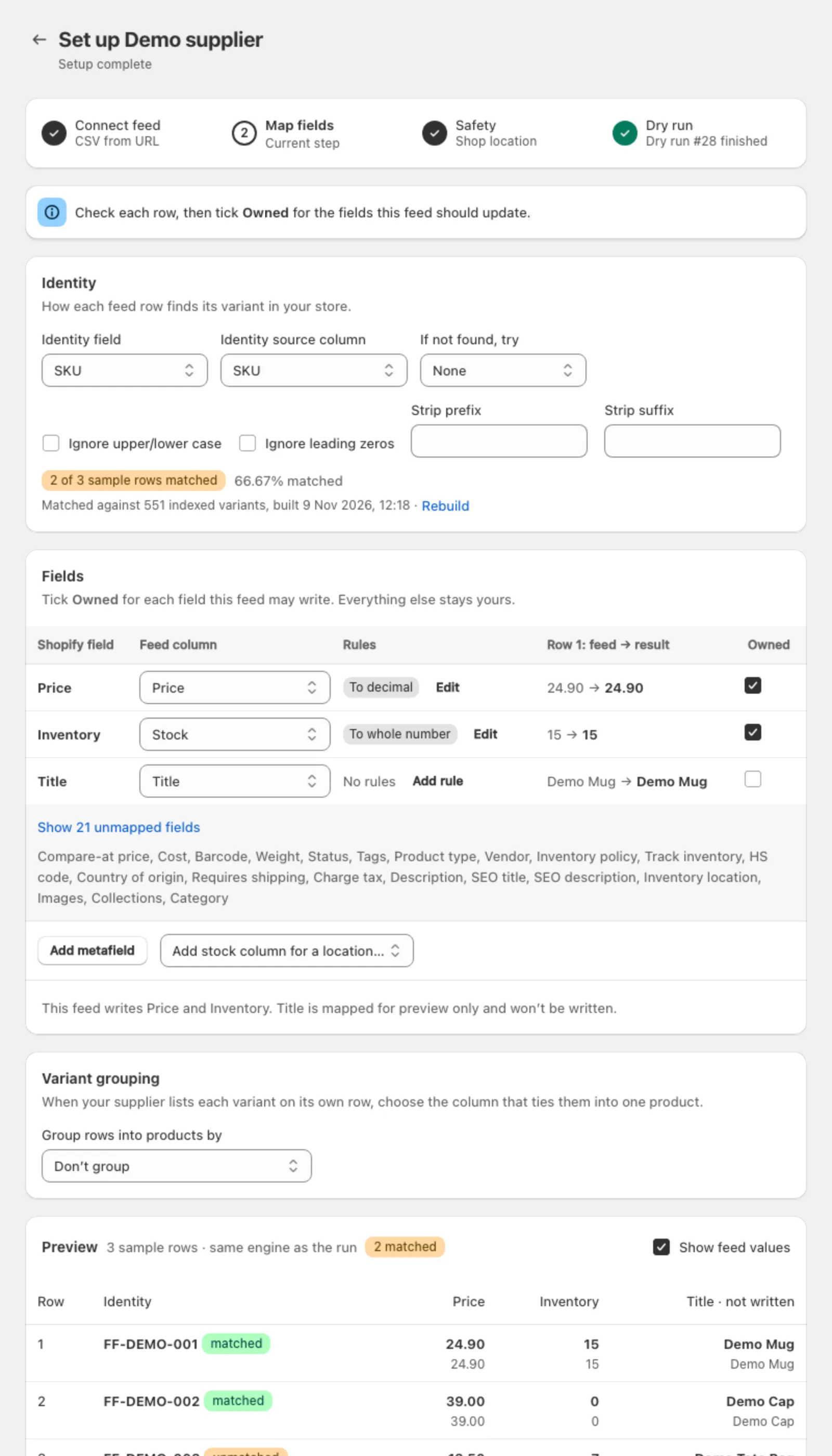
Choose Save and continue to Safety.
Safety
Section titled “Safety”Guards check the whole run before anything is written. If one trips, the run stops and your store stays exactly as it was. Choose Use recommended values to start with sensible ones: stop if fewer than 90% of rows match, and, when the feed writes prices, hold back any price that would move by more than 50%. See Guards.
If the feed owns Inventory, choose the Inventory location its stock goes to. Your primary location is used by default.
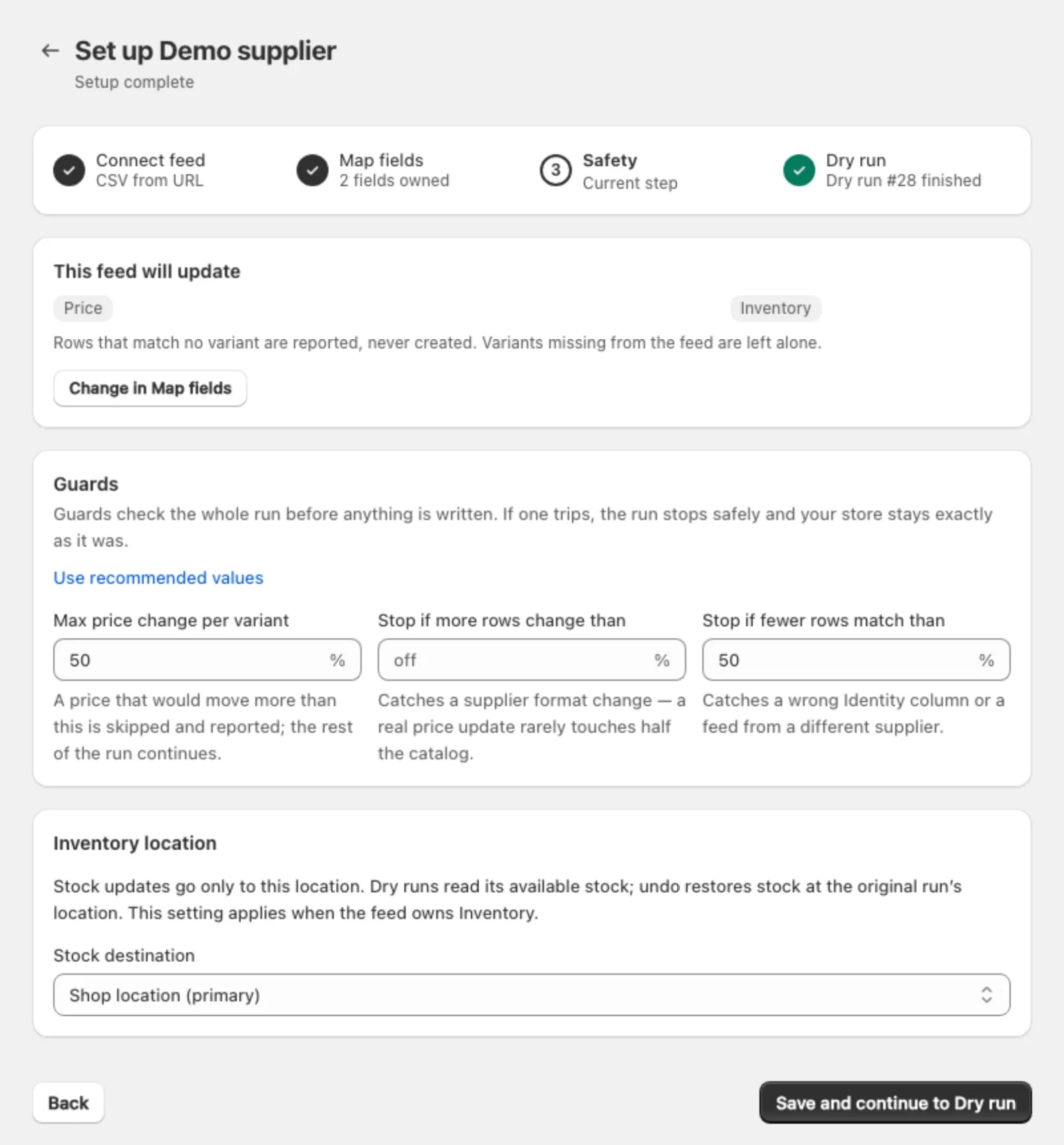
Choose Save and continue to Dry run.
Run the dry run
Section titled “Run the dry run”Choose Run dry run. A dry run reads the whole feed and works out every change a live run would make, then stops. Nothing is written to Shopify.
When it finishes, you see the Planned changes: for each variant and field, the value In Shopify now and the value the Live run would write. The step lists the first 50 changes; when there are more, choose View all … in the report. The report shows every change, every skipped row and why. See Run reports.
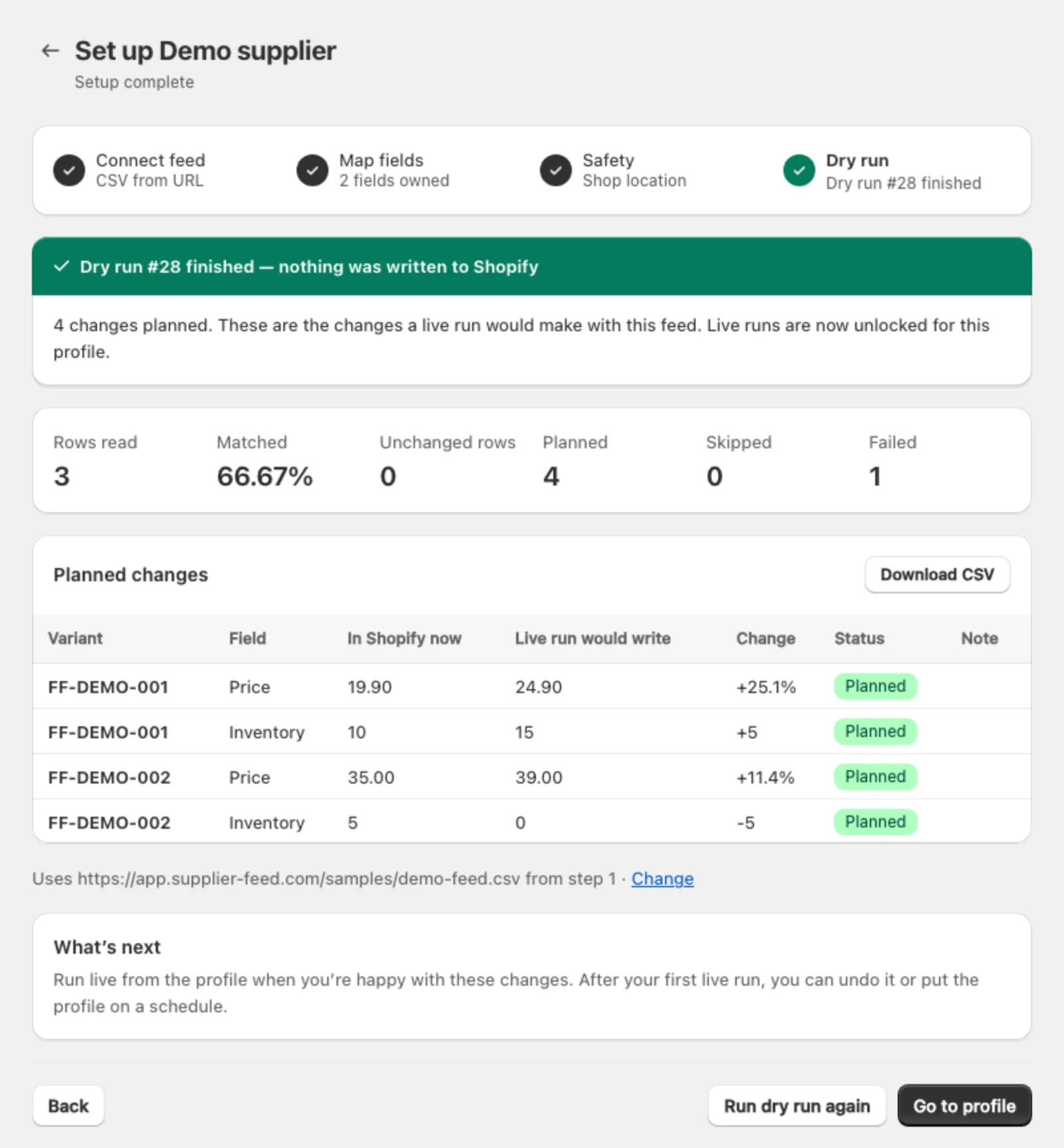
A completed dry run unlocks live runs for this profile. If the changes don’t look right, change the mapping or the guards and run the dry run again.