Map feed columns to Shopify fields
A profile’s mapping says how each feed row finds its variant in your store and which value goes into which Shopify field. You build it in the setup’s Map fields step and change it later in the profile’s Mapping tab. Changes take effect when you save.
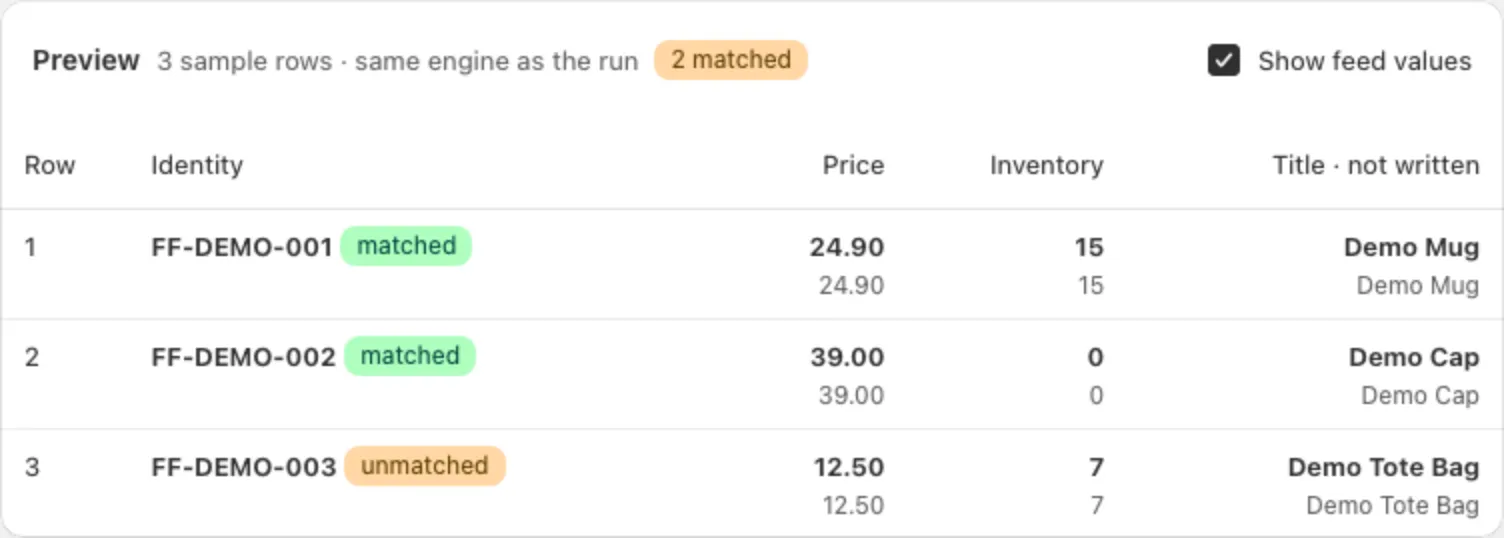
The preview below the mapping shows sample rows from your feed. To check a different file without changing the saved source, choose Preview another file or URL… on the Source tab.
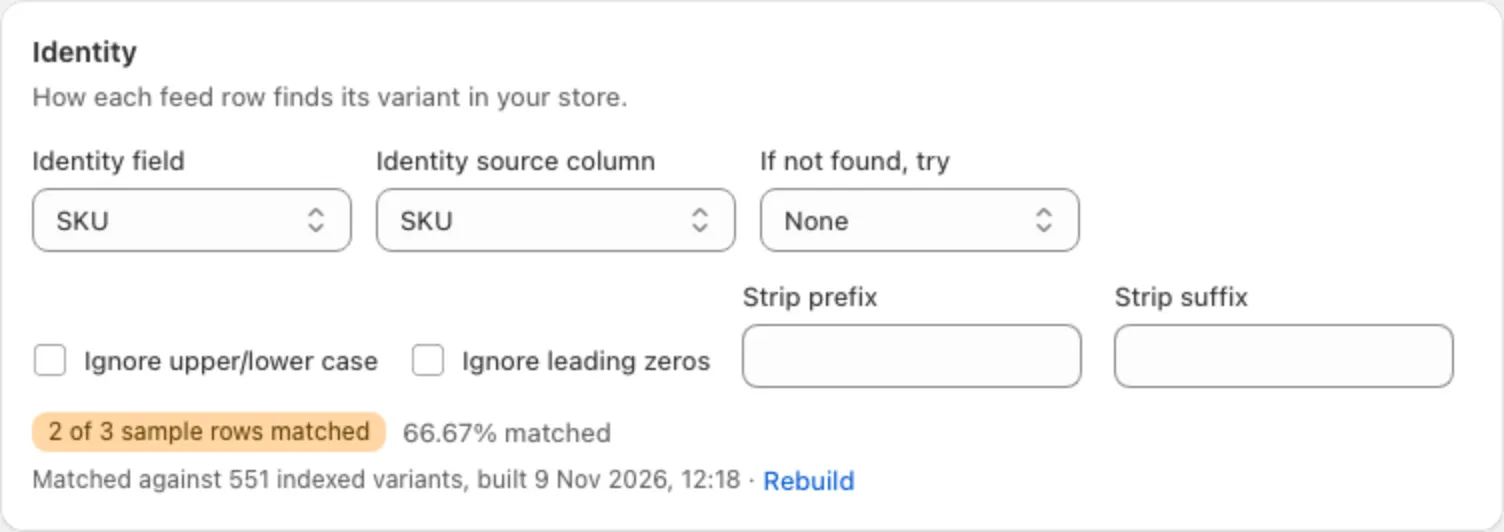
Identity: match rows to variants
Section titled “Identity: match rows to variants”Under Identity, choose:
- the Identity field: SKU, barcode, variant ID, handle and options, or a variant metafield;
- the Identity source column: the feed column that holds it;
- optionally, under If not found, try, a fallback: SKU or barcode.
The matching can Ignore upper/lower case, Ignore leading zeros, and Strip prefix or Strip suffix from the value. These apply to your feed and your store alike. If two of your variants become equal after that, both are skipped as ambiguous: FeedForge never guesses.
Each sample row is marked matched, unmatched or ambiguous, and the card shows how many matched. If none did, check that the column holds the same SKUs or barcodes as your Shopify variants.
Fields: map columns to Shopify
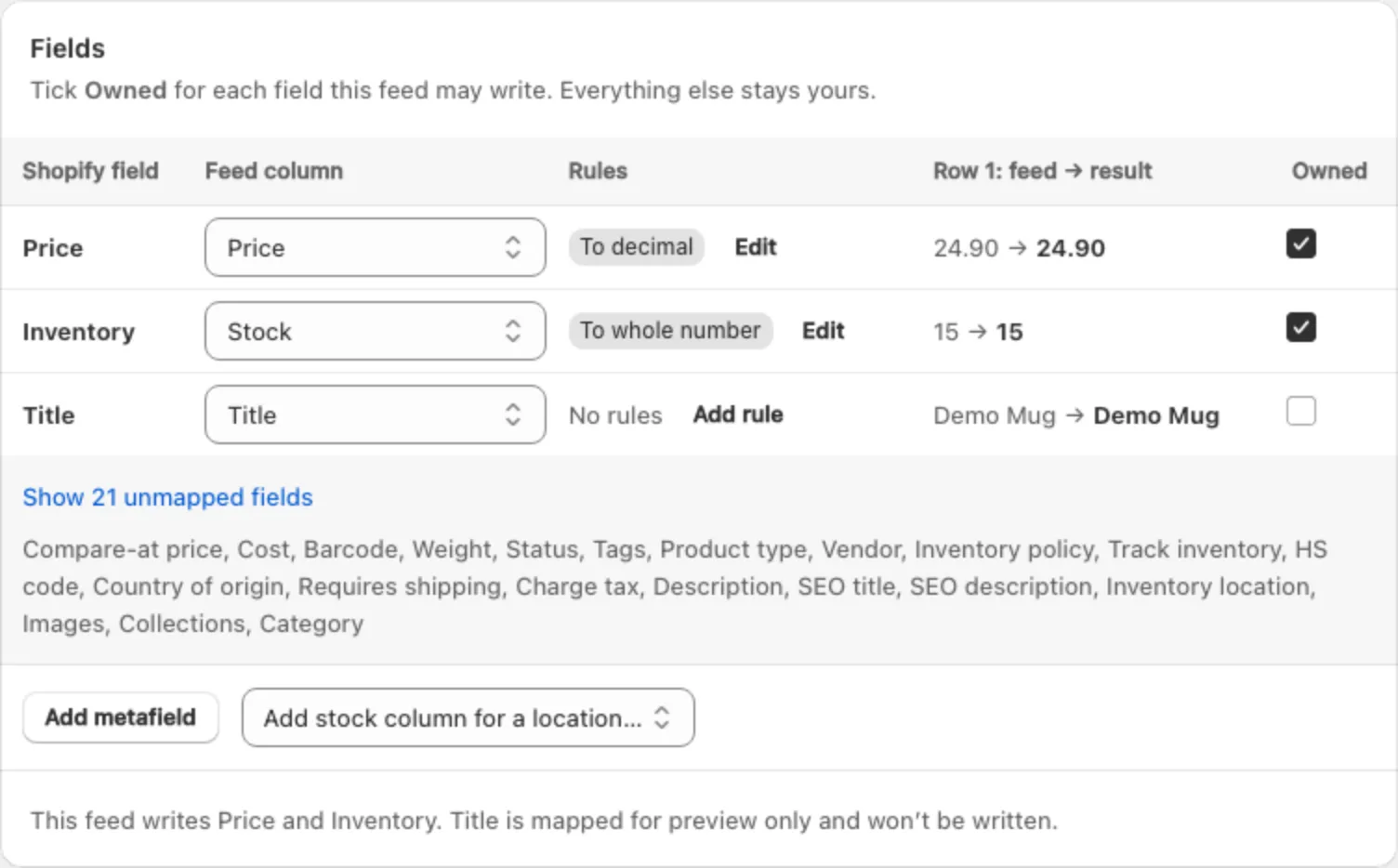
Section titled “Fields: map columns to Shopify”Each line of the table is one Shopify field: its Feed column, its Rules, the value Row 1: feed → result, and Owned. FeedForge suggests a column for each field whose name it recognises; check each suggestion.
Tick Owned only for the fields this feed should update. A field that is mapped but not owned appears in the preview only and is never written. See Field ownership.
Product fields, like the title, description, vendor or tags, have one value per product. When several rows belong to one product, the first row’s value is used, and a later row with a different value is reported in the run.
Metafields
Section titled “Metafields”Choose Add metafield to write a product or variant metafield. Pick one of your metafield definitions, or enter a Namespace and key and a type for a metafield without a definition. Choose whether it goes on Each variant or on The variant’s product.
Lists, weights, dimensions, volumes, money and category metafields each take a setting next to the field: a separator, a unit, your shop’s currency or an Entry table. See Metafield types.
Stock at several locations
Section titled “Stock at several locations”If the feed owns Inventory, its stock goes to the location you chose under Inventory location in the Safety step or the Settings tab. If your feed has one stock column per warehouse, use Add a stock column for a location to map each column to its location. If each row names its location, map that column to Inventory location; it sends the row’s stock to the location it names and is never written itself.
Images, collections and category
Section titled “Images, collections and category”- Images adds the feed’s image URLs next to the product’s own images. It removes only images FeedForge added.
- Collections adds the product to the listed collections, creating missing ones. It removes the product only from collections FeedForge added it to.
- Category uses a Category table: match each of your supplier’s categories to a Shopify product category. Products in a category you leave unmatched get no category.
Variant grouping
Section titled “Variant grouping”When your supplier lists each variant on its own row, use Variant grouping to say which rows
make one product. Choose the column under Group rows into products by, and up to three
options, each with a name and a value column (for example Size from the size column). The
first row of a product sets its title and other product fields. Grouping matters most when you
create products.

Check before you run
Section titled “Check before you run”After you save, run a dry run. The preview shows 20 rows; the dry run reads the whole feed and lists every change, so it is the place to check a new mapping.