Create Shopify products from a feed
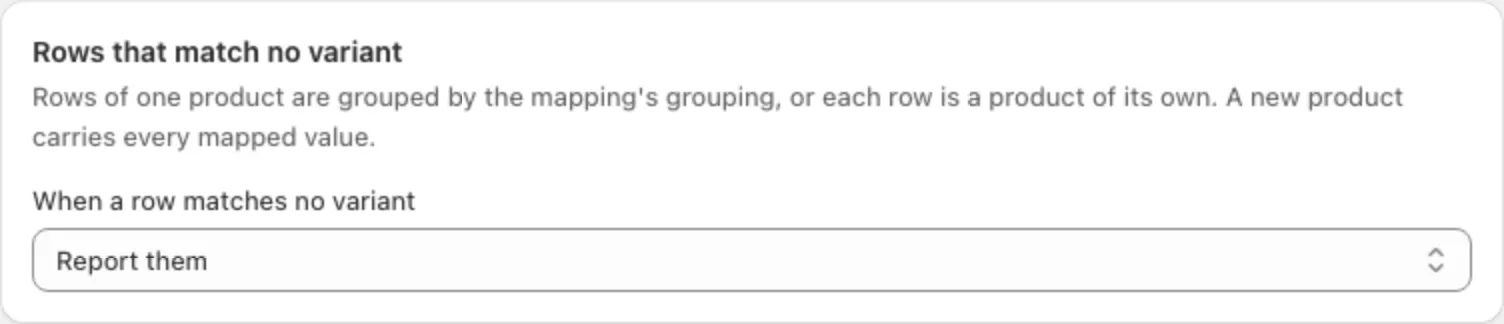
By default, a row that matches no variant in your store is only reported. A profile can instead create a product for it, so new items in your supplier’s range appear in your store.
Group rows into products
Section titled “Group rows into products”Most feeds list each variant on its own row. In the profile’s Mapping tab, set up Variant grouping:
- Under Group rows into products by, choose the column that is the same for all rows of a product, such as a parent SKU or model number.
- Add up to three options. Give each a name, typed (
Size) or read from a column, and choose the column with its value.
The first row of a product sets its title and other product fields. A later row that differs, repeats an option combination, or has no value for an option is listed as a problem, not created. A row with an empty grouping cell becomes a product of its own.
Map at least a Title. Map Images, Collections and Category to give new products pictures, collections and a category. New variants are matched by SKU or barcode, so use one of those as the Identity.
Turn on creation
Section titled “Turn on creation”- Open the profile’s Settings tab.
- Under Rows that match no variant, set When a row matches no variant to Create their products.
- Choose the Status of created products. Draft lets you review and publish them in Shopify when you’re ready; active products are visible on your sales channels at once.
- Set Stop if a run would create more products than. This guard catches a changed identity column, which would make every row look new, before anything is written.
- Save.
When rows of one product match some of its variants already in your store, the other rows are added to that product as new variants.
Run a dry run first
Section titled “Run a dry run first”After changing this setting, run a dry run: a live run needs one with the same setting. The dry run’s report lists every New product and New variant it would create, and the Product groups, with problems flagged. Choose Only products with problems to see what needs fixing in the feed.
Undo removes what a run created
Section titled “Undo removes what a run created”Undoing a live run that created products archives or deletes them, as you choose. See Undo a run.
Variants missing from the feed
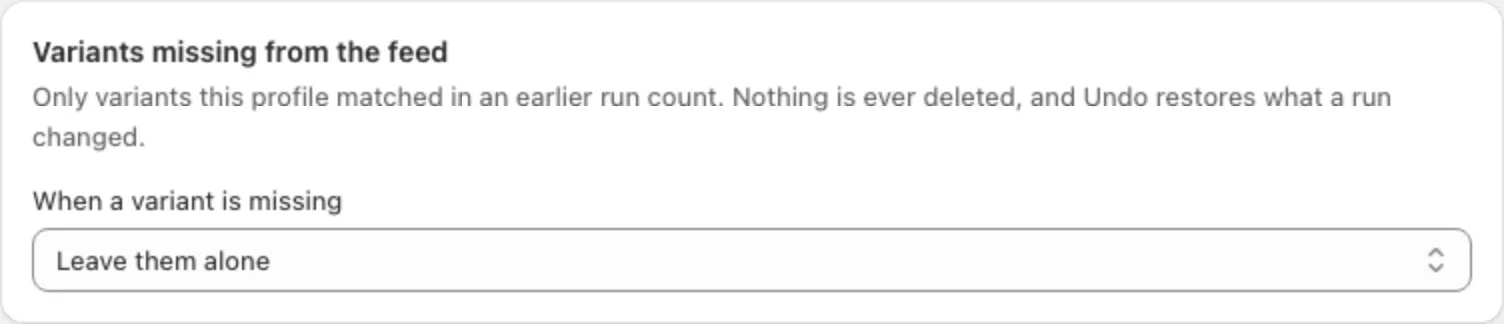
Section titled “Variants missing from the feed”The opposite case has its own setting. Under Variants missing from the feed, choose what happens to variants this profile matched before that are no longer in the feed:
- Leave them alone (the default);
- Set their stock to 0;
- Set their product to draft, or Archive their product, once none of its variants is in the feed.
Nothing is ever deleted. Stop if more variants are missing than a percentage you set catches a partial or broken feed before anything is written.