
Clean feed values with rules
Rules change a feed value on its way to Shopify: tidy text, convert numbers, add a margin, translate a supplier’s codes. Each field has its own list of rules, which run top to bottom. The preview, the dry run and the live run all use the same rules, so the preview shows exactly what a run will write.
Add a rule
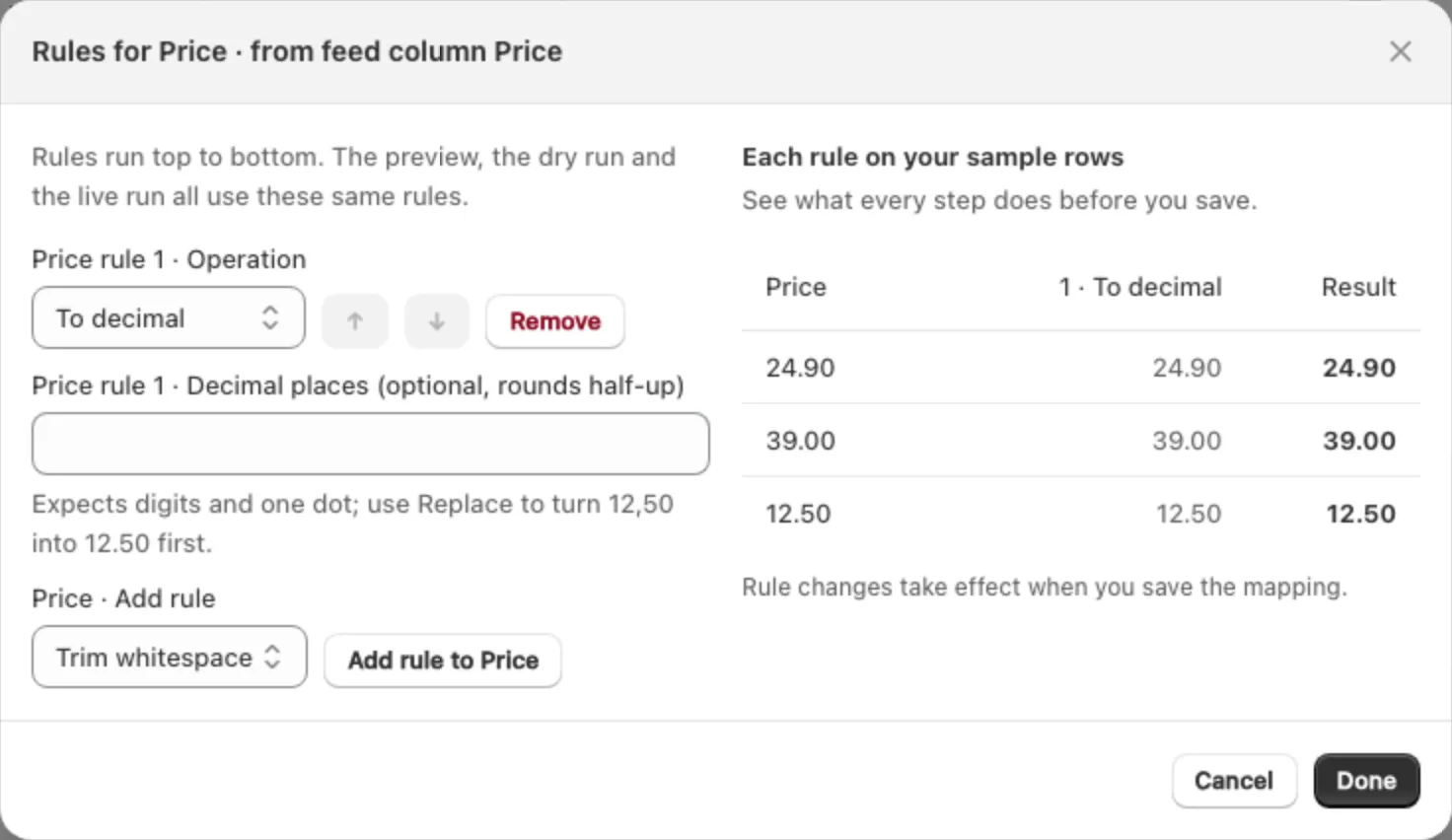
Section titled “Add a rule”- In the mapping table, choose Add rule (or Edit) on the field’s line.
- Choose an operation and fill in its settings.
- Under Each rule on your sample rows, check what every step does to your sample values.
- Close the dialog and save the mapping. Rule changes take effect when you save.
Use the arrows to change the order of the rules.
Operations
Section titled “Operations”| Kind | Operations |
|---|---|
| Text | Trim whitespace, Upper-case, Lower-case, Prefix, Suffix, Replace text, Regex replace, Strip HTML, Truncate, Split and take part, Append another column |
| Numbers | To decimal, To whole number, Add, Subtract, Multiply, Divide, Round, Clamp, Tiers (if … then) |
| Values | Lookup table, Default when empty, Parse date, Convert unit |
| Rows | Skip row if |
Round rounds half up, up (Ceiling) or down (Floor), or to a psychological price:
Psychological (x.99) rounds up to the next whole amount, then back down to the ending you
give: with 0.99, both 12.34 and 13.00 become 12.99.
Skip row if leaves out the whole row when its condition holds, for example when the value
is empty or equals discontinued.
Lookup table translates values with one from = to line each. A value that is not in the
table becomes a row error, unless you set a Default when not found.
Tiers (if … then) gives each range of values its own Multiply by and Then add. A tier runs from From (included) up to, but not including, Below, so a cost of exactly 10 falls in the tier from 10, not the one below 10. Choose Text equals or Text contains under Match by to compare text instead, such as a brand. Under Compare column, name another feed column to compare, such as the cost or the brand, while the rule changes this field’s value. Text tiers always need one; a number range without one compares this field’s own value. The first tier that fits is used. Overlapping ranges are flagged before you save. A value that fits no tier uses Otherwise, or becomes a row error when Otherwise is empty. It never becomes 0. Under Each rule on your sample rows, every value shows the tier it took.
Common recipes
Section titled “Common recipes”Prices with a decimal comma. A value like 12,50 isn’t a number yet. In the mapping, choose
your format under Numbers in your feed, and FeedForge adds the rules for you. By hand: add
Replace text from , to ., then To decimal.
Add a margin. To decimal, then Multiply by 1.3 for 30%, then Round, for example
Psychological (x.99).
Tiered markup. Costs under 10 ×2.5, from 10 to under 50 ×1.8, 50 and above ×1.4, then .99:
To decimal, then Tiers (if … then) with three tiers: 0–10 multiply by 2.5, 10–50
multiply by 1.8, and from 50 with Below empty, multiply by 1.4. Then add Round with
Psychological (x.99). A cost of 9.99 becomes 24.99, 10.00 becomes 17.99 and 50.00 becomes 69.99.
Weights in kilograms. FeedForge writes weights in grams. Add To decimal, then Convert unit from kg to g.
Yes/no columns. Fields like Track inventory or Charge tax take true or false.
Add a Lookup table: yes = true, no = false.
Stock as text. Inventory must be a whole number. Add To whole number.
When a rule fails
Section titled “When a rule fails”If a rule can’t handle a value, for example To decimal gets n/a, that change is not written
and the row is reported with the reason in the run’s report. A price never silently becomes 0.